WP Umbrella includes a site-wide two-factor authentication policy for WordPress administrators, free on every plan and with no extra plugin to install. When you turn it on, every administrator on that site is signed out and walked through setting up an authenticator app at their next login. This guide explains how to enable the policy from your dashboard, what each administrator sees during enrollment, and how to handle recovery codes, lost devices, and the login methods that stop working once the requirement is active.
🕒 Estimated Time to Complete: 2 minutes
Access to your WP Umbrella dashboard
Administrator access to the WordPress site you want to protect
An authenticator app for each administrator, such as Google Authenticator, 1Password, Authy, or Bitwarden
No other 2FA plugin active on the site
The requirement is site-wide and applies to administrators only, meaning users who can manage options on the wp-login form only. There are no per-role policies, so editors, authors, and customers are unaffected.
Authentication is TOTP only. Each administrator scans a QR code with any authenticator app, then enters a 6-digit code. Wrong codes are rate-limited, so the second factor cannot be brute-forced.
Enrollment is forced, and there is no grace period. As soon as the policy is on, an administrator who has not set up 2FA is walked through the setup at their next login attempt.
Open the website or project in question from WP Umbrella and navigate to the Security → Hardening section.
Locate the "Require two-factor authentication for administrators" option and click to enable it. The same policy can also be switched on from the plugin settings directly on the site.
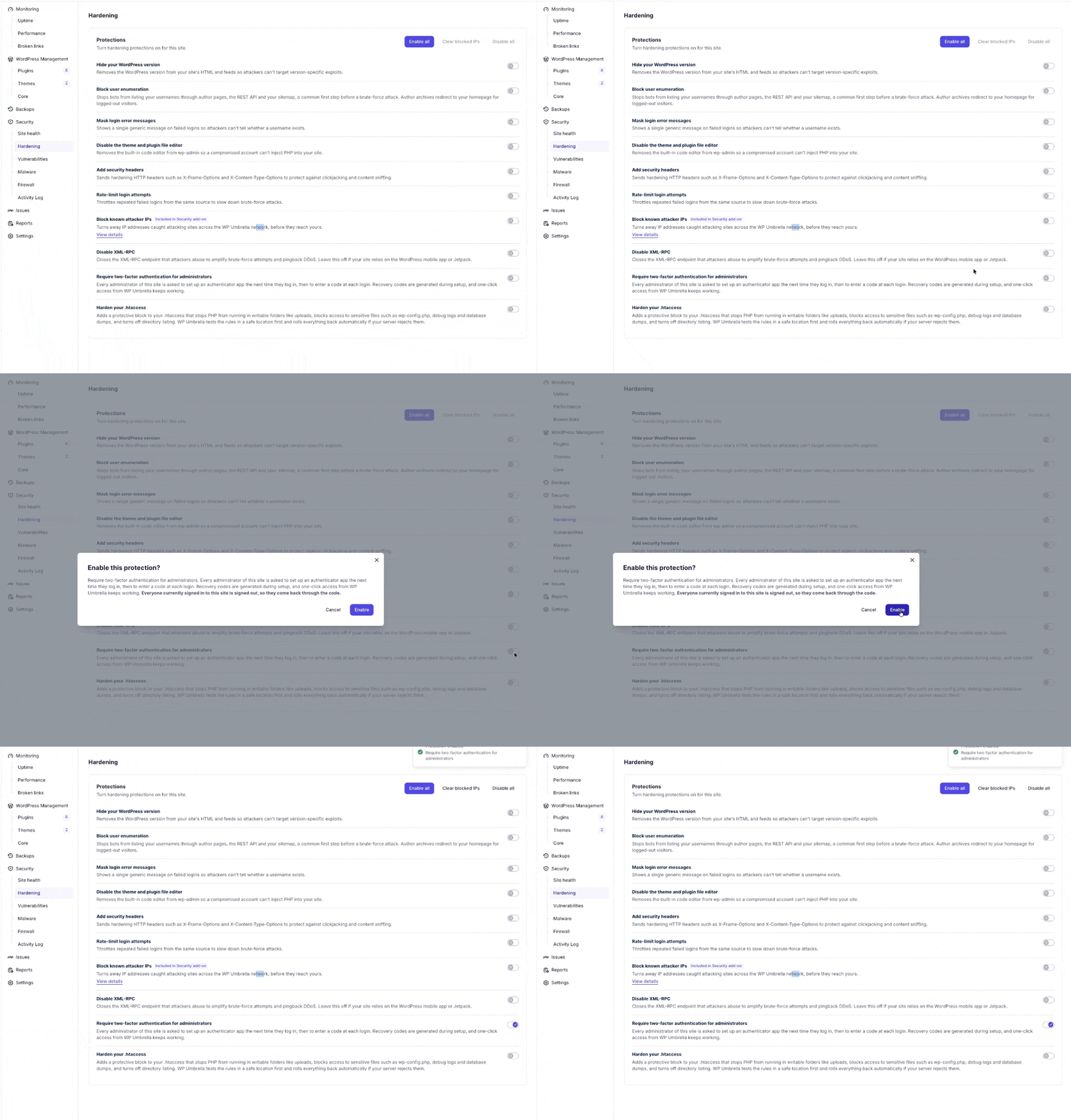
Once enabled, all administrators are logged off from the website. On their next login attempt, each one is prompted to set up their preferred tool, for example, Google Authenticator.
Setup takes under a minute: scan the QR code with the authenticator app, then confirm with the 6-digit code the app generates. From that point on, the code is requested at every login.
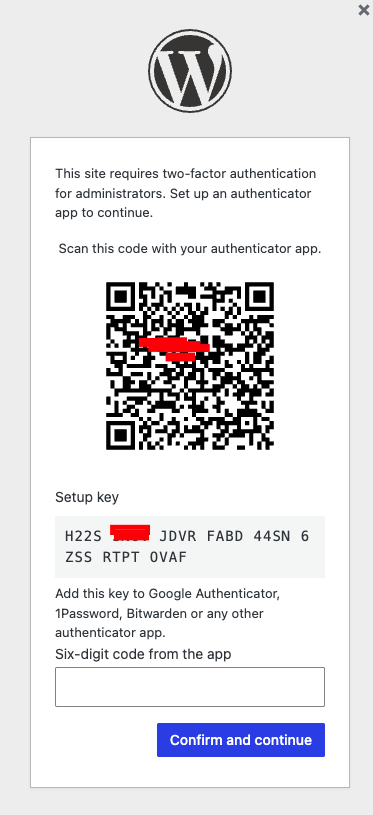
During setup, each administrator is issued 10 single-use recovery codes. These are the fallback if the phone holding the authenticator app is lost, wiped, or replaced, so they should be stored somewhere safe and separate from the site, such as a password manager.
Recovery codes can be regenerated at any time from the WordPress profile screen.
While the requirement is active, covered administrators can no longer log in over XML-RPC or with an application password, because neither method can ask for a code. Check any integration or script that authenticates as an administrator before you enable the policy.
Our One-Click Access still works as usual. If you want the code to be the only way in, turn One-Click Access off for that site.
Any app that generates TOTP codes will work, including Google Authenticator, 1Password, Authy, and Bitwarden. There is nothing to configure on your side.
They can log in using one of their 10 single-use recovery codes. If those are unavailable too, another administrator can reset that person's second factor from the user's profile screen in WordPress.
No. If Melapress WP 2FA, Two Factor, Wordfence Login Security, Solid Security, or miniOrange is active, WP Umbrella detects it, stands down, and tells you so. The two will never fight over the login form.
Neither can prompt for a code, so covered administrators cannot use them while the requirement is active. This affects administrators only.
Not at the moment. The policy covers administrators, meaning users who can manage options, on the wp-login form only. Per-role policies and WooCommerce integration are not planned in the short term.
No, and email was left out deliberately. Your password reset already goes through your mailbox, so an email code adds no protection against a compromised mailbox.
Not currently. Authentication is TOTP only.
No. The moment the policy is on, administrators are signed out and taken through setup at their next login.
No. Wrong codes are rate-limited, so repeated guessing is blocked long before a valid code could be found.
No. Trusted devices, configurable code expiration, and 2FA on password resets are not supported.
No. There is no REST API for 2FA, no API for additional methods, no custom email templates, and no usage reports.
No. 2FA is included free on every plan, with no extra setup on your side.
Requiring 2FA closes off the most common route into a WordPress site: a reused or leaked administrator password. It takes a single toggle in your dashboard and under a minute per administrator to set up, and it costs nothing on any plan. Make sure everyone stores their recovery codes somewhere safe before you switch it on, and if you want the code to be the only way in, remember to turn One-Click Access off for that site. If anything behaves unexpectedly, reach out to our support team.
