Most compromised WordPress sites aren't hacked with anything clever. Attackers list usernames through public endpoints, brute-force a password, then use built-in features like the theme editor to inject code. Hardening closes those doors before anyone knocks.
With WP Umbrella you can see exactly what is protected, and adjust each rule to what the site actually needs.
⏱ Estimated time to configure: 2–3 minutes per site (defaults are applied automatically)
🛠 Prerequisites:
WP Umbrella plugin installed and activated on your WordPress site
Active Security add-on (+2€/month per site)
Go to the Security tab of any site and open the Hardening section. Toggles are grouped in two blocks: General settings (applied by the WP Umbrella plugin) and .htaccess features (applied as server-level rules).
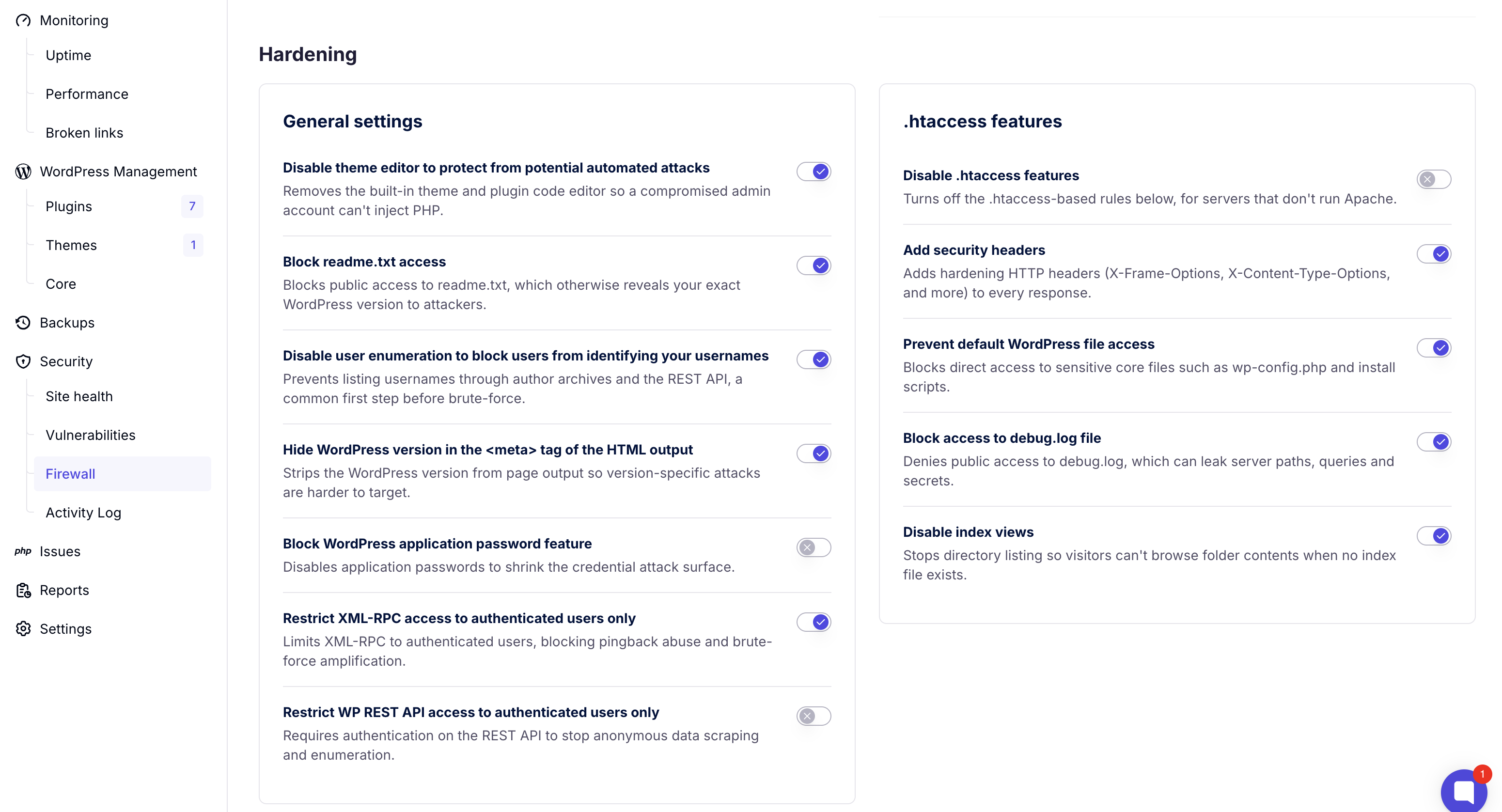
Toggle | What it does | Why it matters |
Disable theme editor | Removes the built-in theme and plugin code editor from wp-admin | A compromised admin account can't inject PHP through the editor (and clients can't either) |
Block readme.txt access | Blocks public access to |
|
Disable user enumeration | Prevents listing usernames through author archives and the REST API | Username discovery is the common first step before brute-force |
Hide WordPress version in meta | Strips the WordPress version from the HTML output | Version-specific attacks lose their targeting |
Block application passwords | Disables the WordPress application password feature | Shrinks the credential attack surface |
Restrict XML-RPC access | Limits XML-RPC to authenticated users | Blocks pingback abuse and brute-force amplification |
Restrict REST API access | Requires authentication on the WP REST API | Stops anonymous data scraping and enumeration |
These rules are written at the server level. They apply to servers running Apache; the first toggle turns them all off for servers that don't.
Toggle
What it does
Why it matters
Disable .htaccess features | Turns off all the | For sites hosted on Nginx or other non-Apache servers |
Add security headers | Adds hardening HTTP headers ( | Defends against clickjacking, content-type sniffing, and related attacks |
Prevent default WordPress file access | Blocks direct access to sensitive core files like | Keeps configuration and setup files out of reach |
Block access to debug.log | Denies public access to |
|
Disable index views | Stops directory listing when no index file exists | Prevents visitors from browsing folder contents |
When you enable the Security add-on on a site, the recommended toggles turn on automatically. Two protections start off because they can interfere with legitimate workflows:
Block application passwords: leave off if the site uses application passwords for integrations or automation.
Restrict REST API access: leave off for headless setups or anything that reads the REST API anonymously.
And one thing to check before you tighten further:
Restrict XML-RPC access is on by default. If a site depends on XML-RPC for unauthenticated use (some legacy integrations and mobile apps), toggle it off for that site.
That's the point of per-site control: a portfolio-wide policy would break someone's edge case. Check what each site depends on before you restrict, and you'll get the security win without the support ticket.
No. Enabling the Security add-on applies the recommended configuration instantly. The Hardening section is there when you want to tighten or loosen individual rules.
The default set is chosen to be safe for the vast majority of sites. The rules that most often interact with legitimate functionality (application passwords, REST API restriction) are off by default, and everything is reversible with one toggle.
No, this is the first batch. More hardening options are coming.
All hardening rules are removed, including the .htaccess entries. Re-enable anytime and the configuration is reapplied immediately.
