The Backup Management page in WP Umbrella provides a centralized dashboard to monitor and configure backup schedules across all your WordPress sites. Follow these steps to efficiently manage your backup strategy.
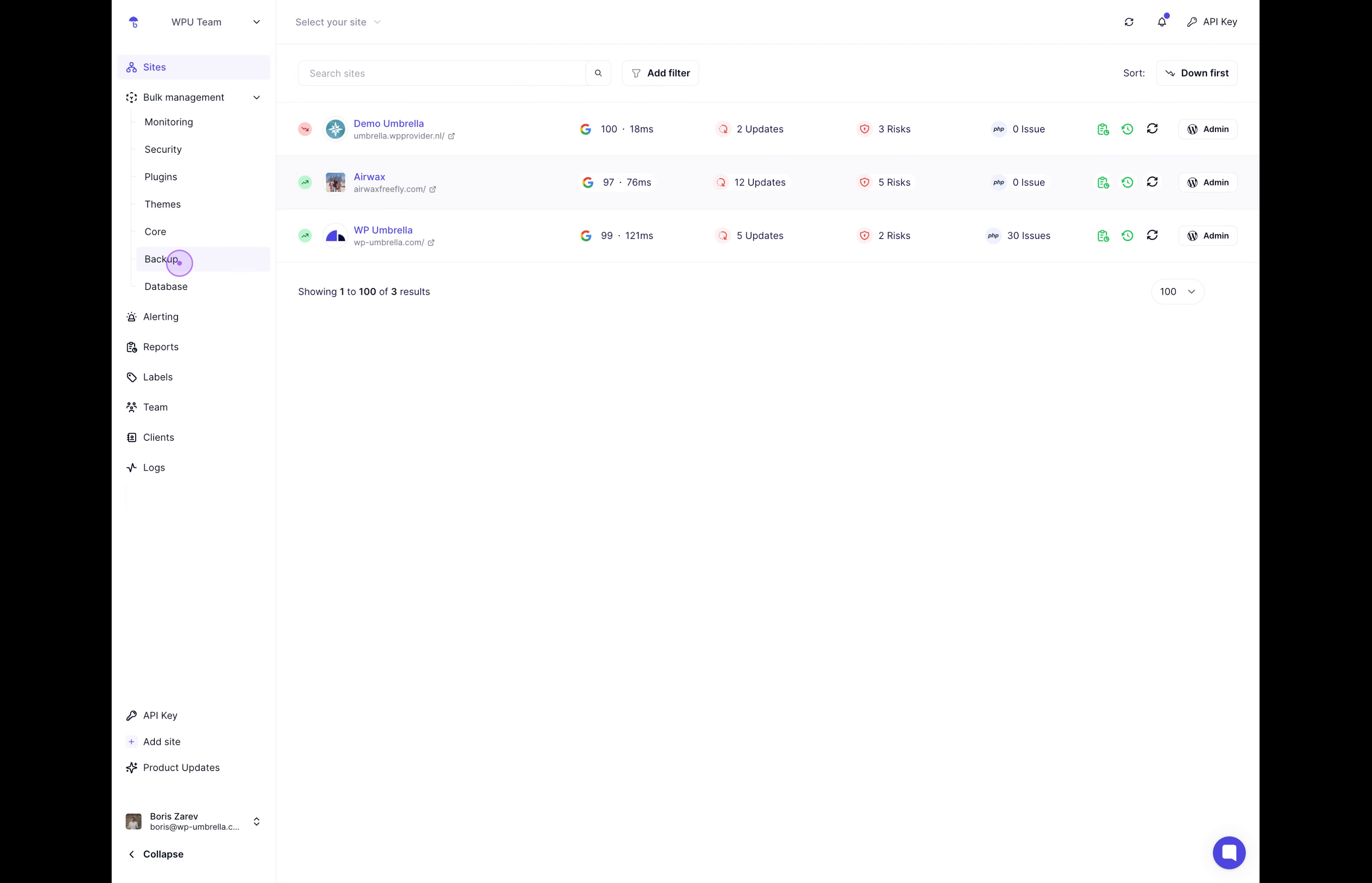
Start by accessing the backup management interface from your WP Umbrella dashboard. Expand the Bulk management menu in the left sidebar and click on Backup. This will take you to the comprehensive Backup Management page, where you can view all backup-related information.
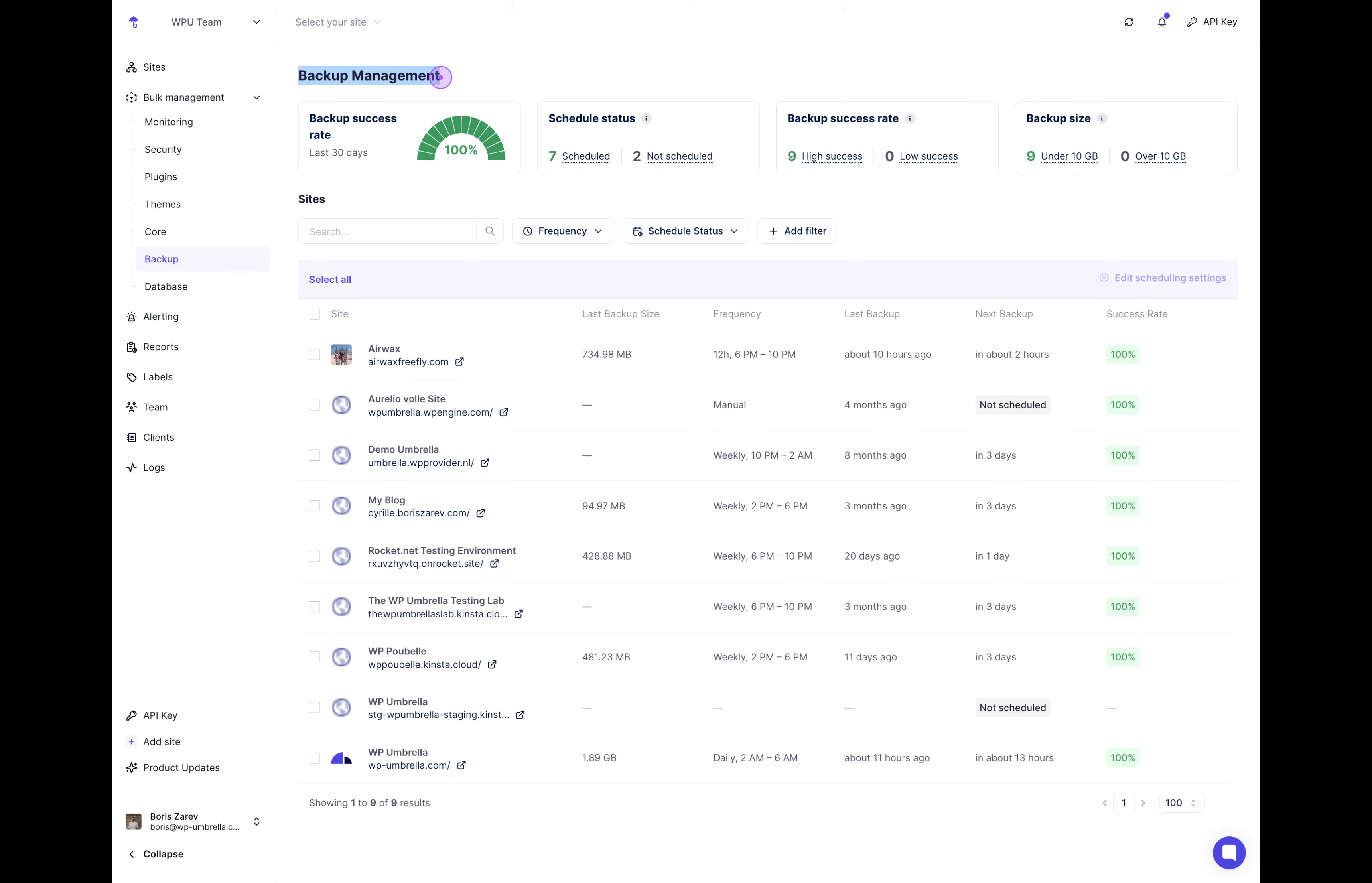
Once on the Backup Management page, take a moment to review the key metrics displayed at the top. The statistics cards provide a quick assessment of your backup health:
Backup success rate: Overall success percentage for the last 30 days (displayed as 100% in the gauge)
Schedule status: Breakdown of scheduled vs not scheduled sites
Backup success rate distribution: High success vs Low success counts
Backup size: Distribution of sites by backup size (Under 10 GB vs Over 10 GB)
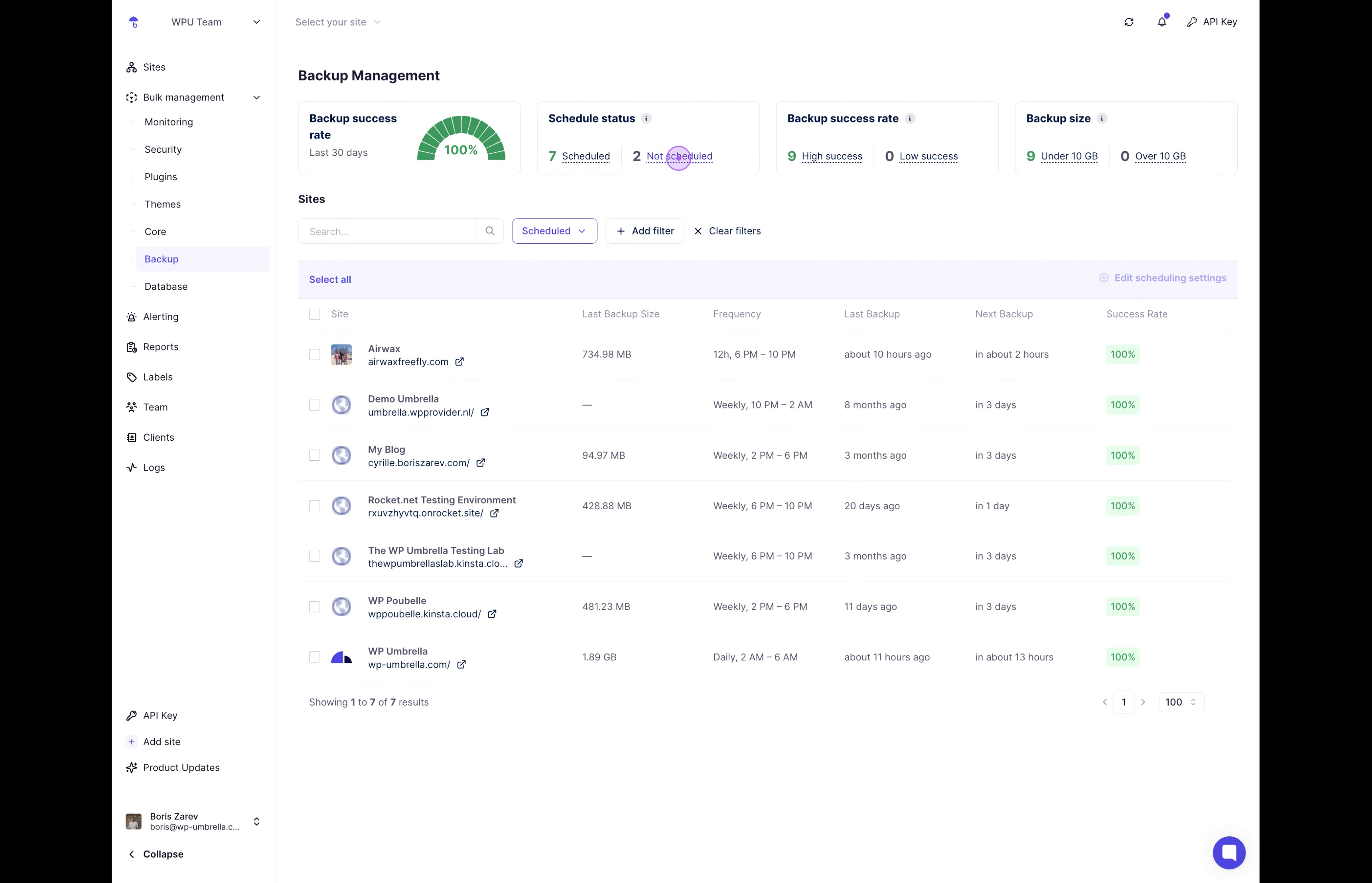
To identify which sites need attention, use the Schedule status filters. Click on the Not scheduled button to filter the table and display only sites without backup schedules. This helps you quickly identify sites that need configuration. The interface shows 2 sites that are not scheduled.
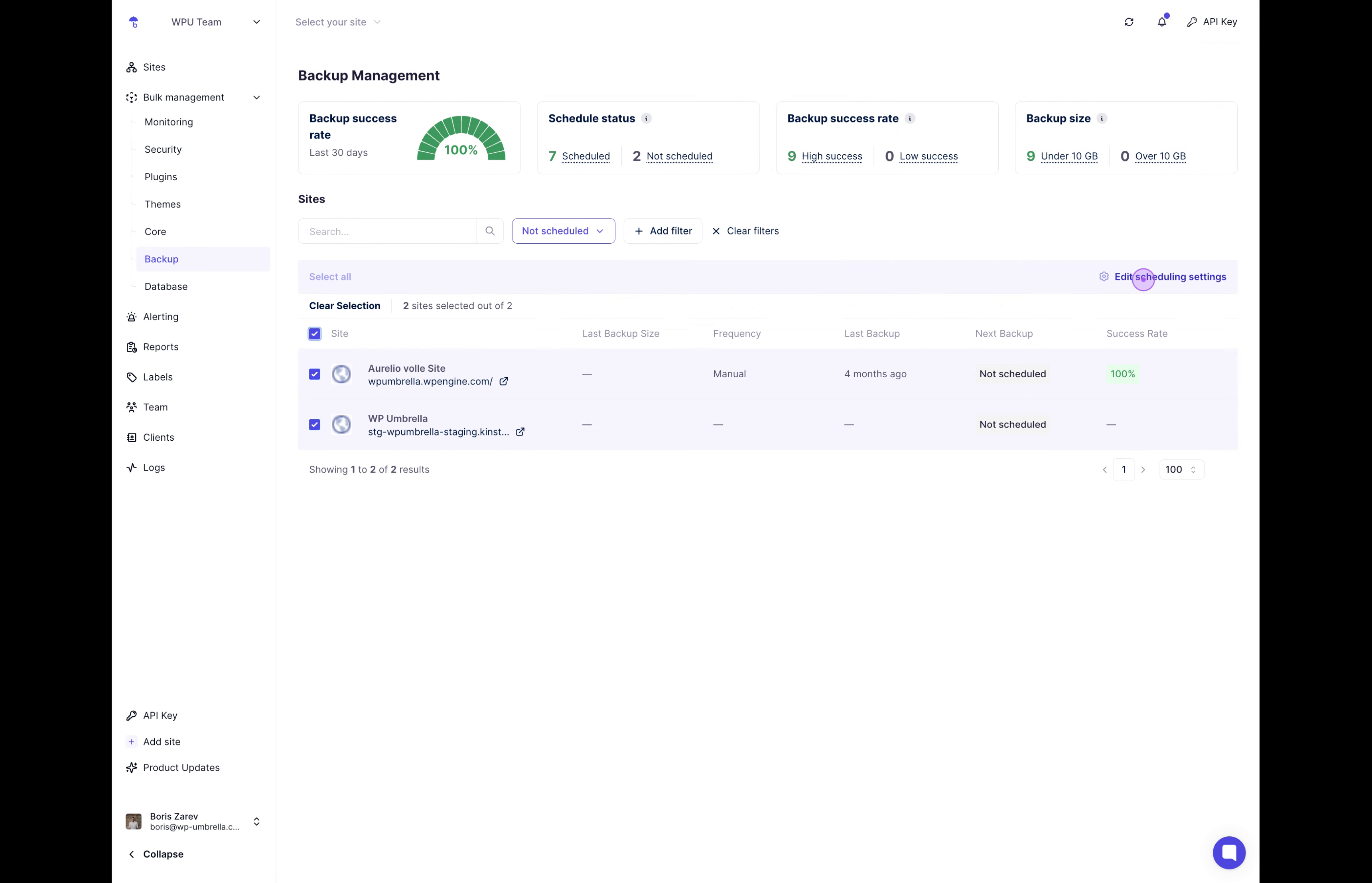
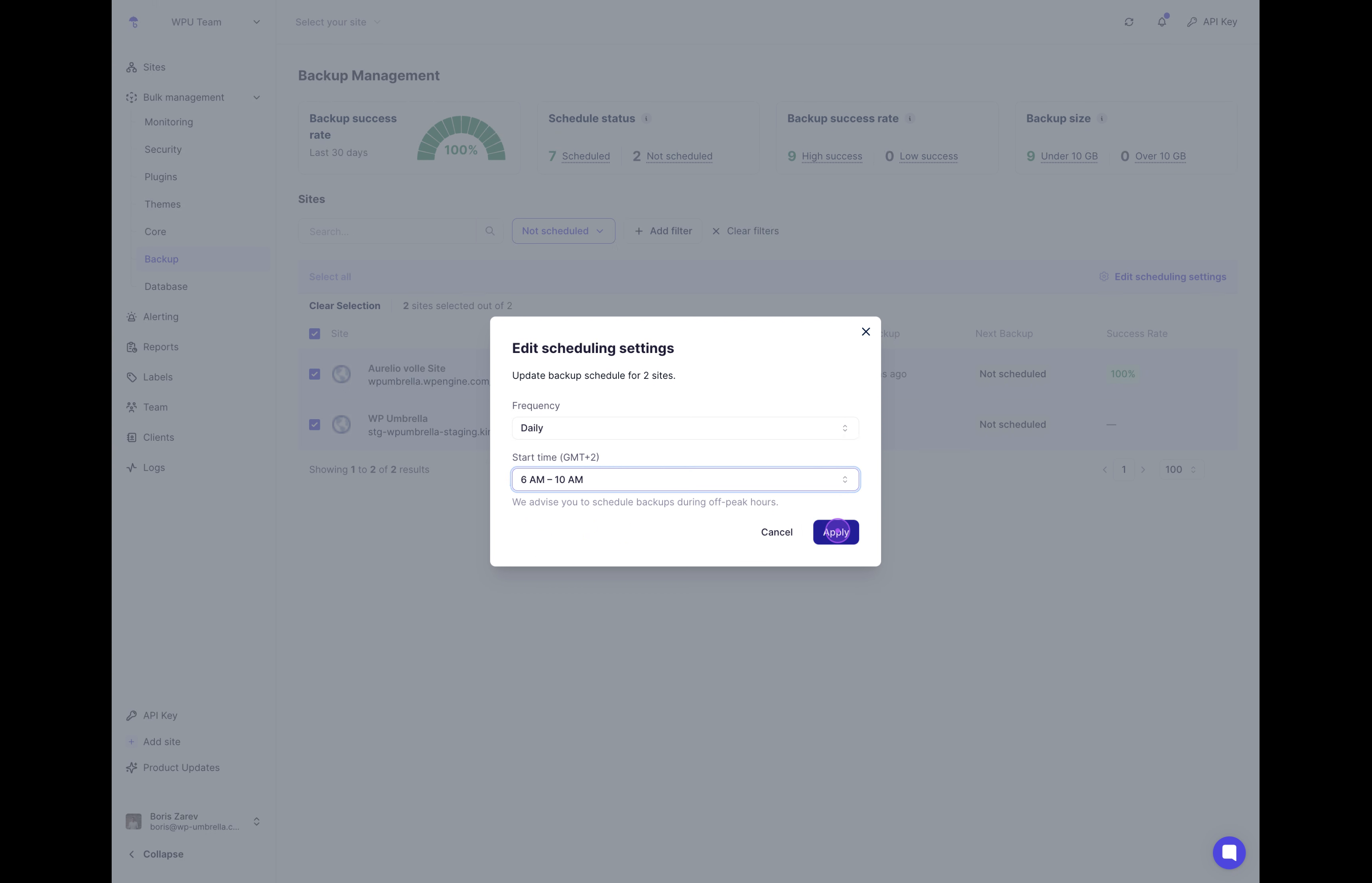
Select the unscheduled sites to begin configuring their backup schedule. Check the boxes next to the 2 unscheduled sites, then click the Edit scheduling settings button in the top right. A modal will appear allowing you to set the backup frequency and timing.
Set your preferred backup schedule and apply it to the selected sites. In the modal, select Daily as the frequency and choose an appropriate time slot (such as 6 AM – 10 AM). The interface recommends scheduling during off-peak hours. Click Apply to save the settings for the 2 selected sites.
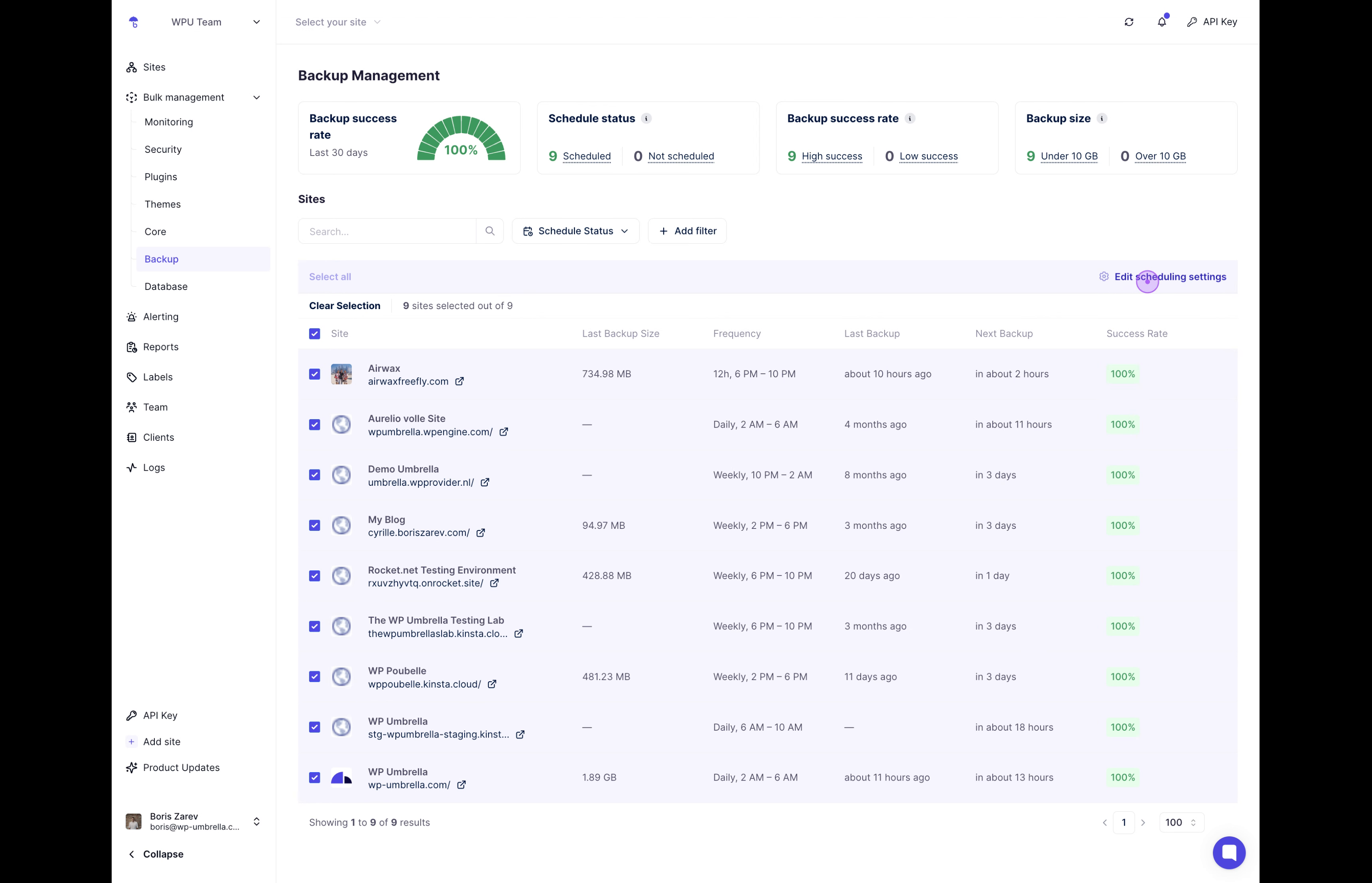
To ensure consistency across your entire portfolio, select all sites for a uniform backup schedule. Clear any active filters by clicking Clear filters, then click Select all to select all 9 sites in your account. With all sites selected, click Edit scheduling settings again to configure backups for your entire site portfolio.
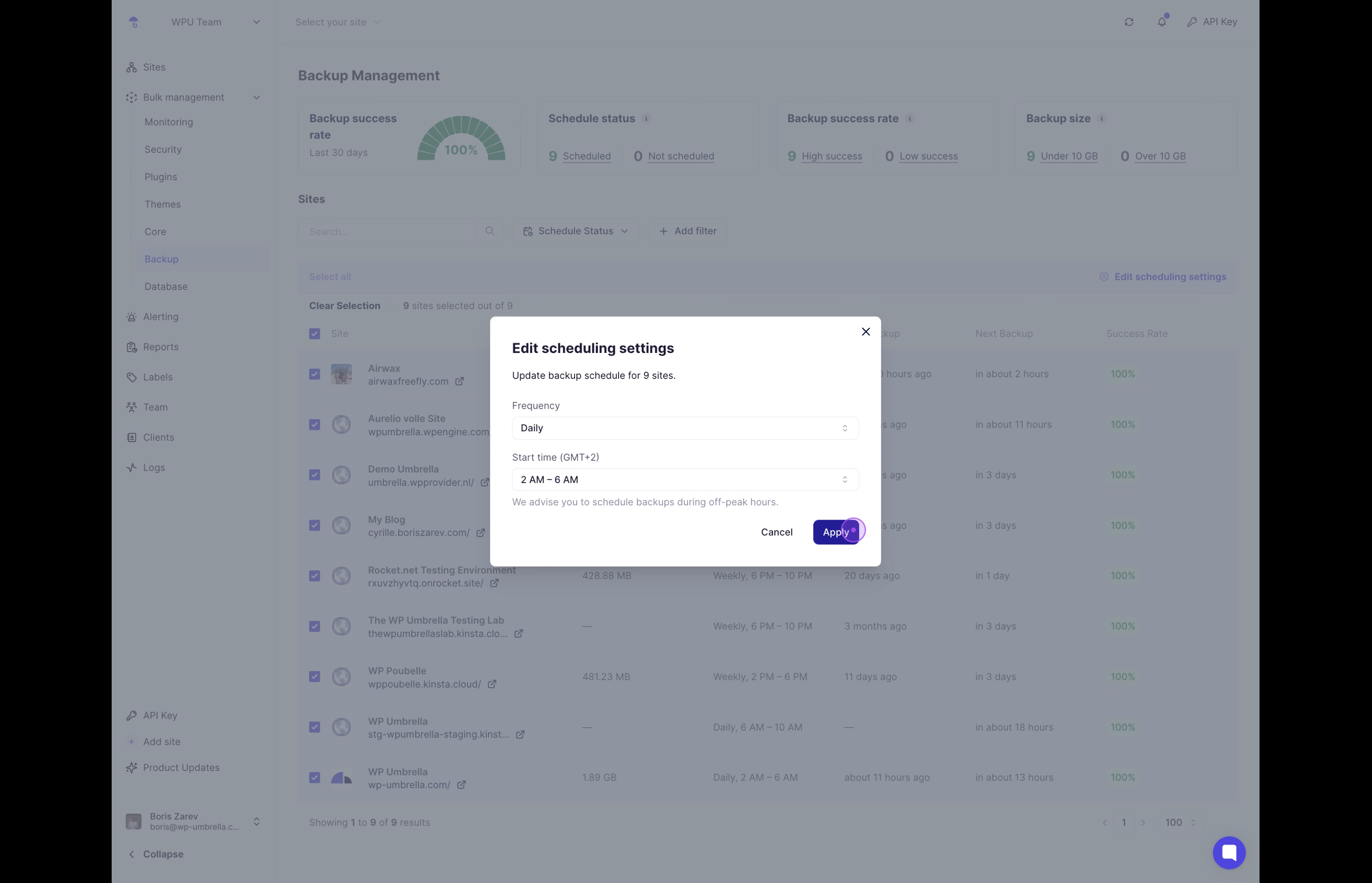
Configure and apply a consistent backup schedule across all sites. In the scheduling modal, set the frequency to Daily and select a time slot (e.g., 2 AM – 6 AM) that works best for your server load. Click Apply to update the backup schedule for all 9 selected sites simultaneously.
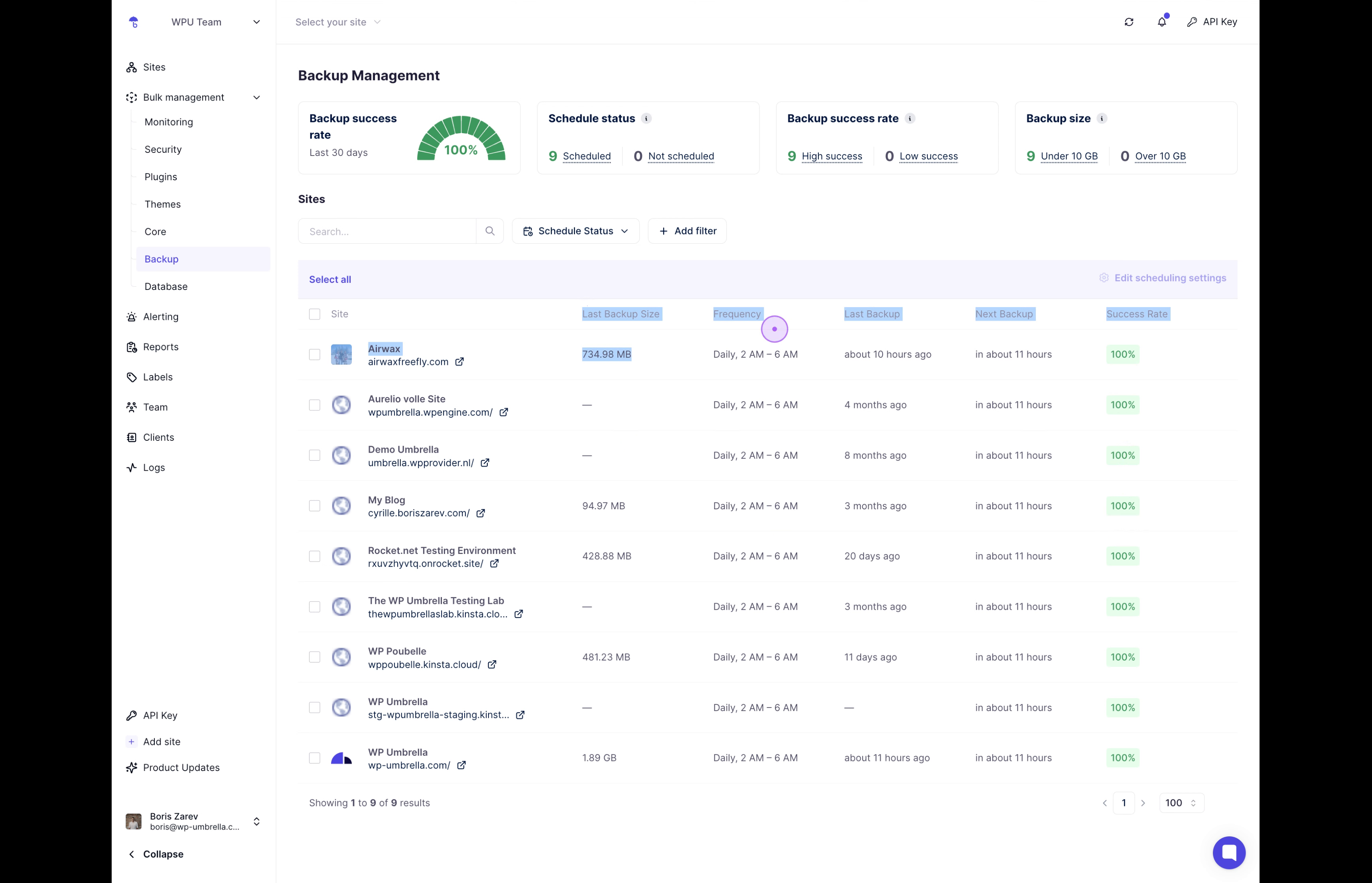
Finally, review the sites table to confirm your changes have been applied correctly. The table now displays updated information for all sites:
Frequency: Shows Daily, 2 AM – 6 AM for all sites
Last Backup Size: Displays the size of the most recent backup (e.g., 734.98 MB)
Last Backup: Shows when the last backup completed (e.g., about 10 hours ago)
Next Backup: Counts down to the next scheduled backup (e.g., in about 11 hours)
Success Rate: Indicates 100% success for all sites
Note: You can always return to this page to adjust schedules, check backup success rates, or troubleshoot any sites with backup issues.
