If your website has lost its connection to WP Umbrella, restoring it is straightforward. You just need to reapply your existing API key.
Estimated Time to Complete: 3 minutes
Prerequisites: A WP Umbrella account, an affected website with a broken connection, and admin access to the WordPress dashboard.
Log in to the WordPress admin dashboard of the website experiencing the missing secret token issue.
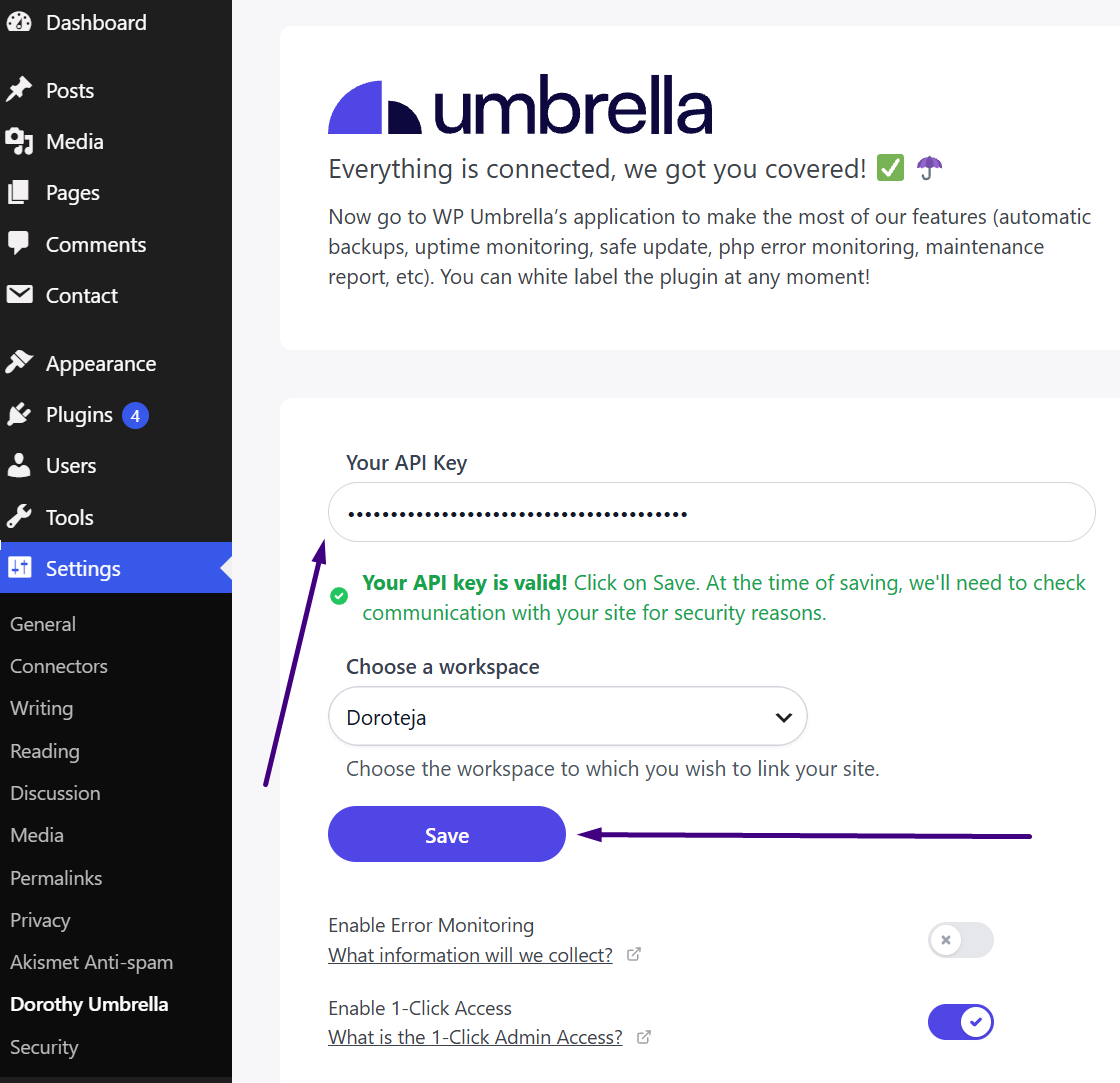
Navigate to the WP Umbrella plugin settings.
Example: https://mywebsite.com/wp-admin/options-general.php?page=wp-umbrella-settings&support=1
Copy your API key from your WP Umbrella dashboard and paste it in the WP Umbrella plugin setting’s and save your changes.
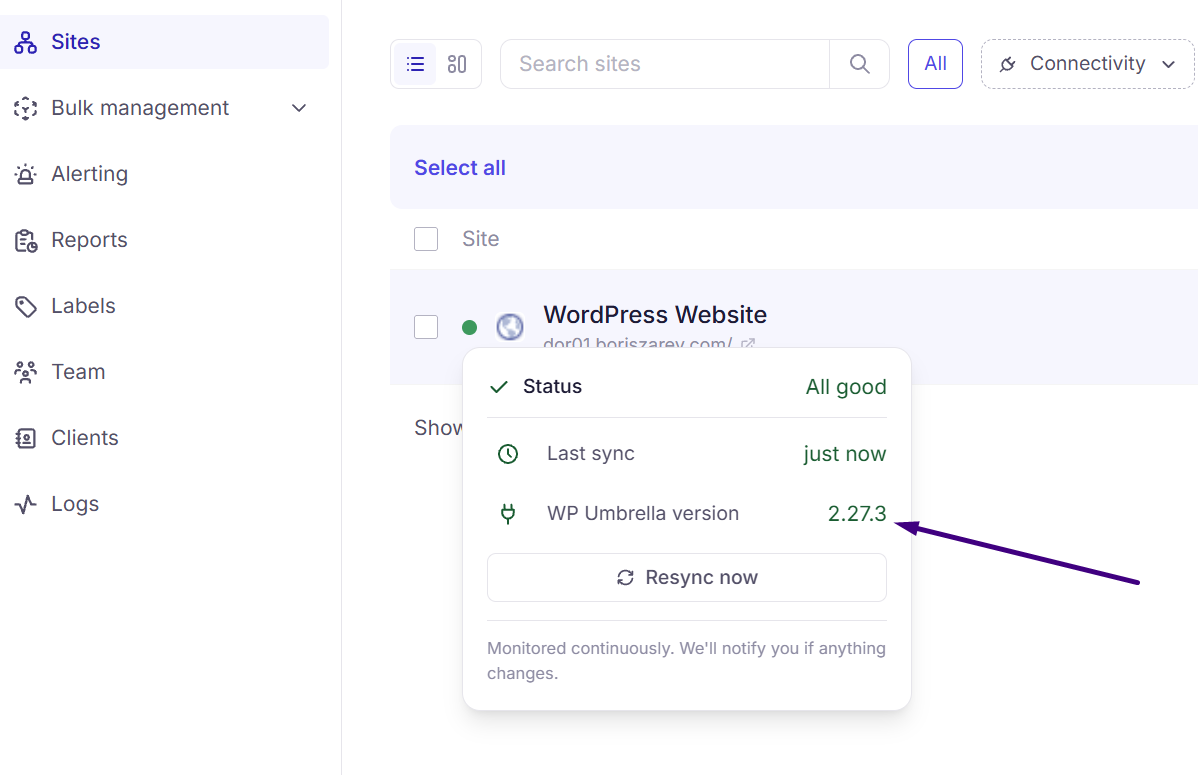
Return to your WP Umbrella account and resync the dashboard to reflect the changes.
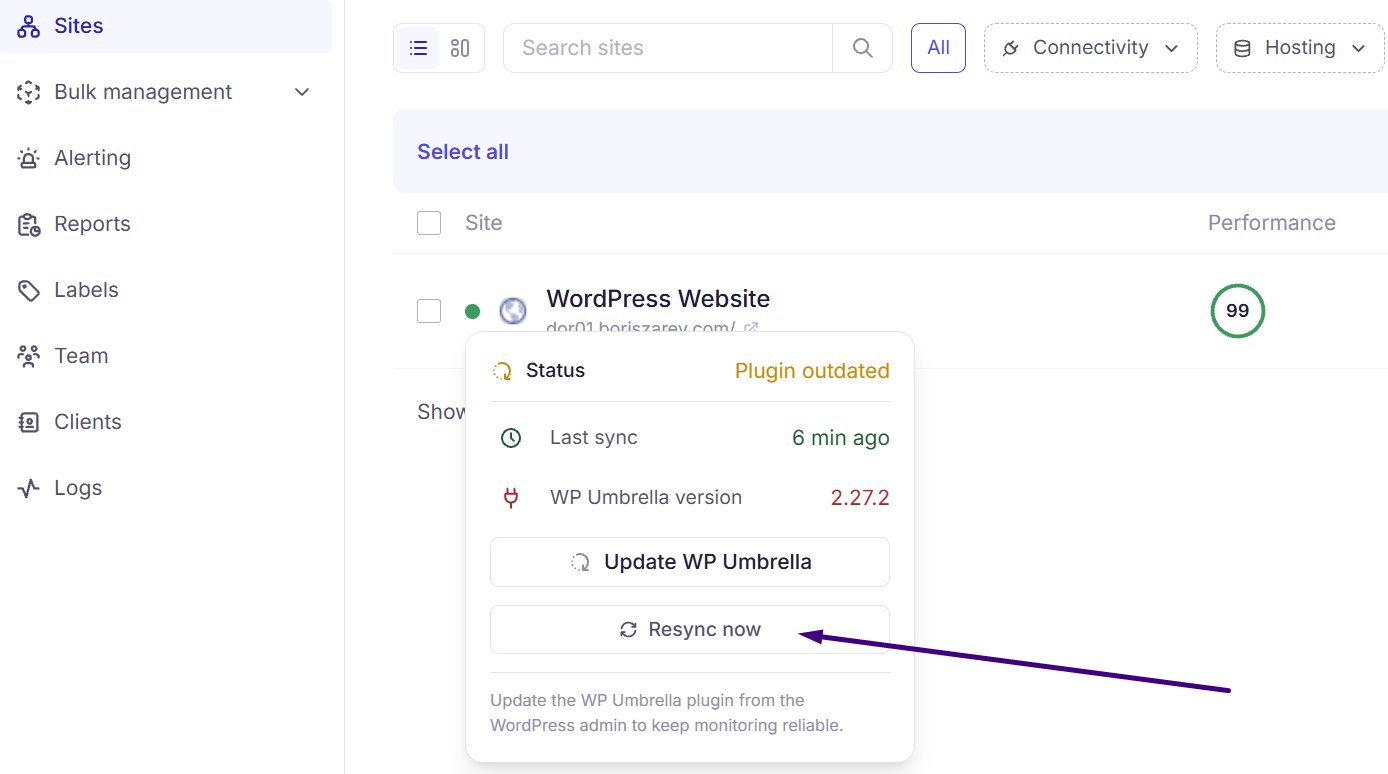
Ensure that all your websites have the latest version of WP Umbrella installed to avoid future connection issues.
❓ What if I can’t access the WP Umbrella settings page?
Ensure you're logged into the correct WordPress admin account with admin privileges. If the issue persists, check your website's URL for typos and try again.
❓ I re-pasted the API key, but the connection is still broken. What should I do?
If the connection remains broken after trying this, it is worth checking if a security measure or firewall is interrupting our connection. Reviewing your server logs will often show what might be causing the blockage. Also, ensure all your websites are running the latest version of the WP Umbrella plugin.
❓ Can I re-paste the API key multiple times?
Yes, you can re-paste the API key as many times as needed.
Once you've completed these steps, your website should be successfully reconnected to WP Umbrella. If you continue to experience issues, feel free to reach out to our support team—we're always here to help! 😊
