🕒 Estimated Time to Complete: 3-5 minutes
✅ Prerequisites: An active WP Umbrella account
The Logs page keeps a detailed record of your website events within WP Umbrella. You can monitor activities categorized into several different types.
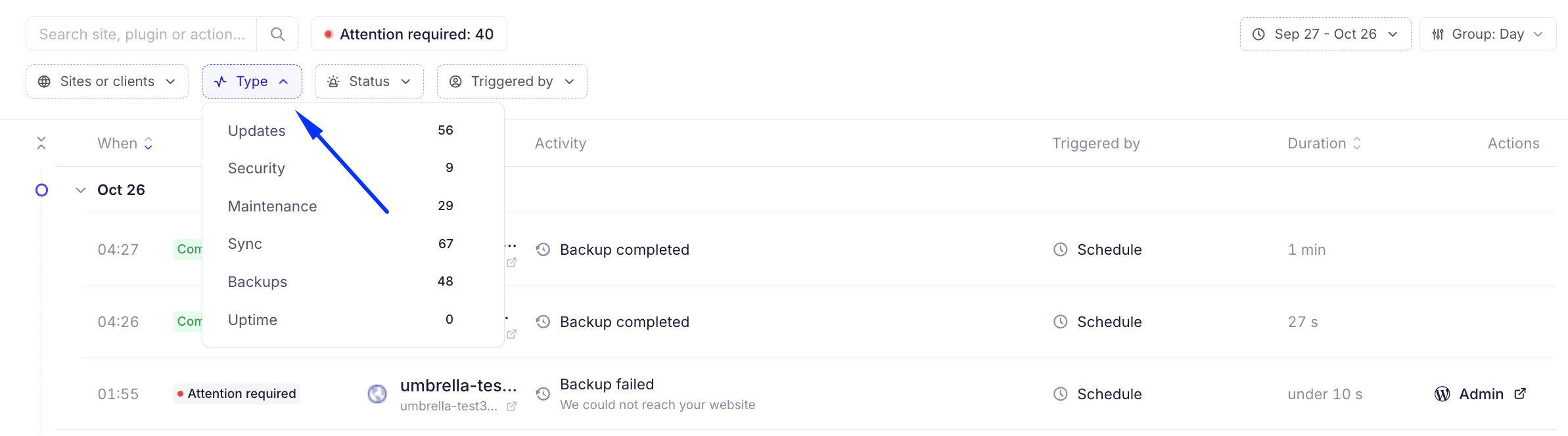
Updates tracking shows you plugin and theme changes. Security and Maintenance logs keep you informed about routine tasks and security statuses. Sync logs detail the communication between your site and WP Umbrella. Backups tracking provides the status of all your scheduled and manual backups. Uptime tracking records any downtime or monitoring events.
Log in to your WP Umbrella dashboard and click the Logs tab on the left navigation menu to view your entire activity history.
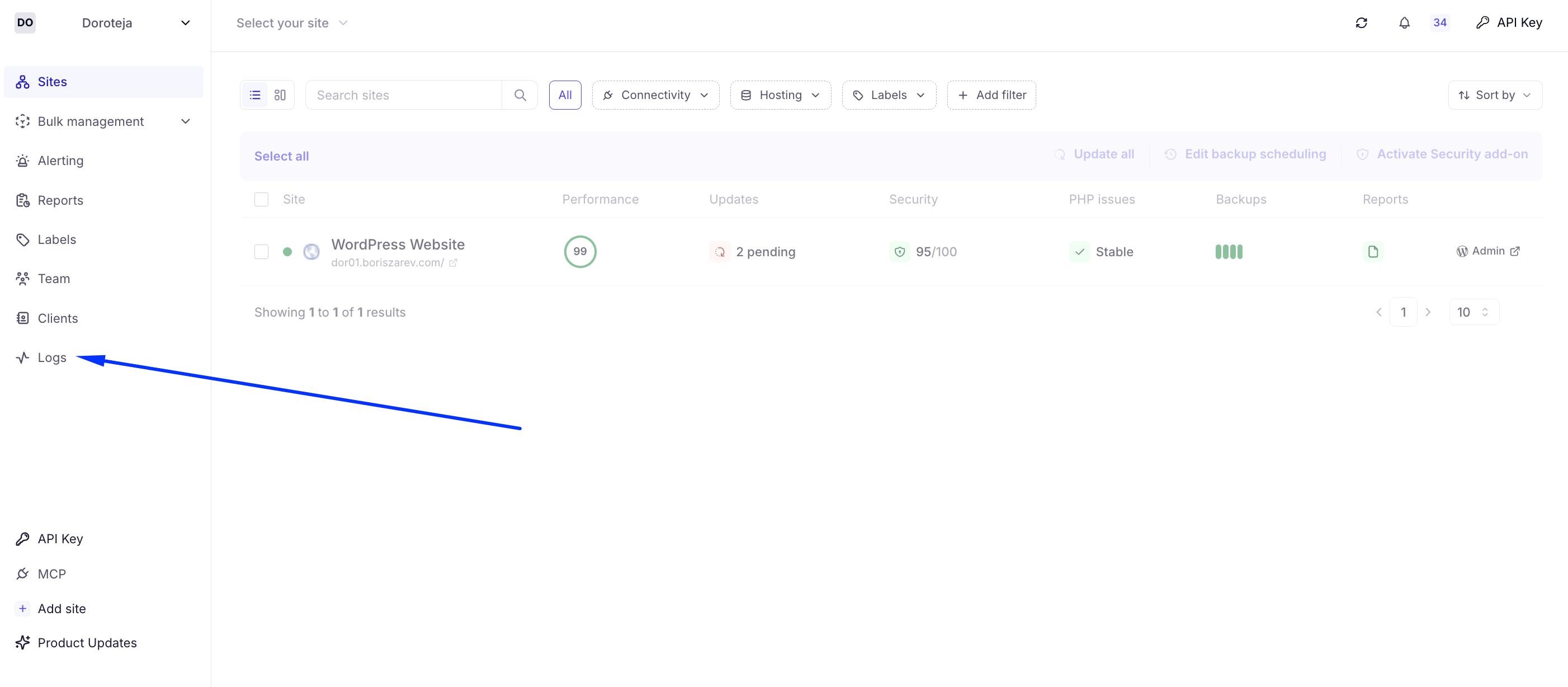
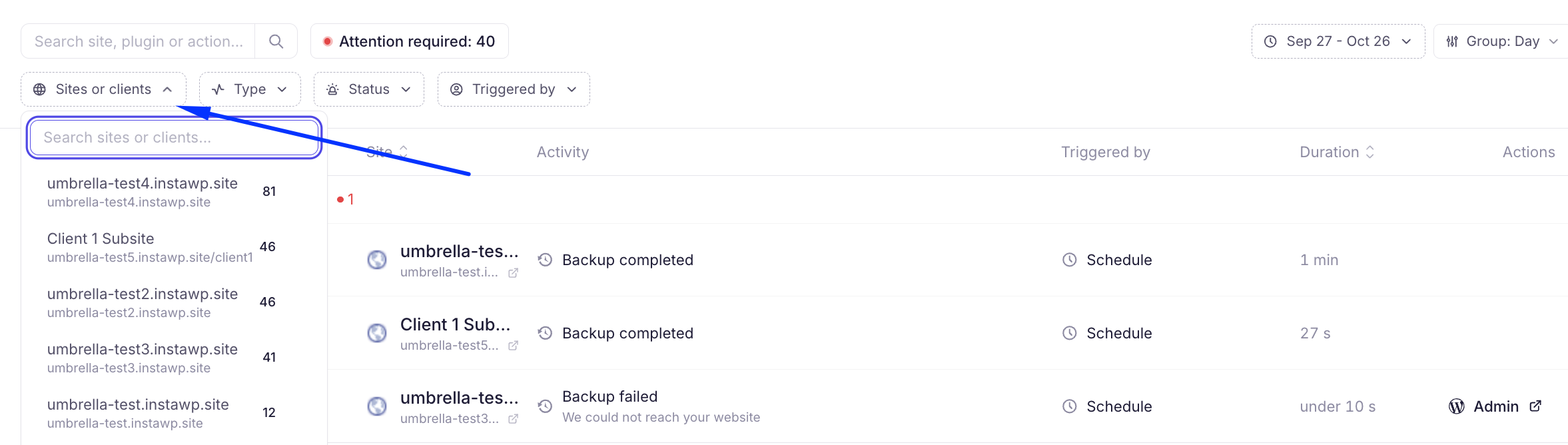
Use the Sites or clients dropdown at the top to narrow down your view. You can search for a specific domain or select an agency client to only see logs relevant to them.
Click the Type dropdown to focus on specific actions. You can choose to view only Backups, Updates, Security, Maintenance, Sync, or Uptime logs.
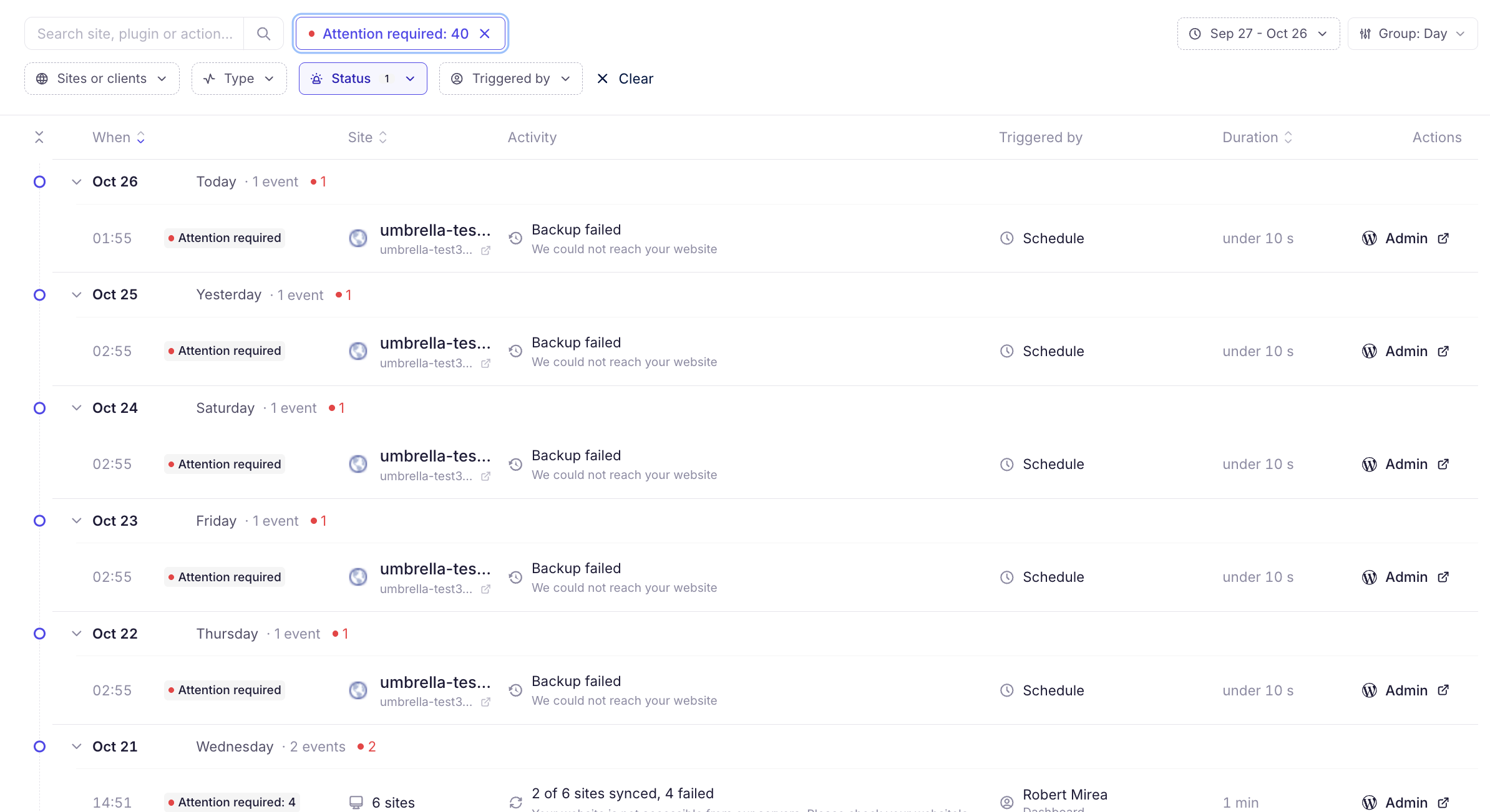
The Status dropdown is incredibly useful for finding problems. You can filter logs by statuses like Attention required, Completed, or Couldn't reach the site to quickly identify which websites need your intervention.
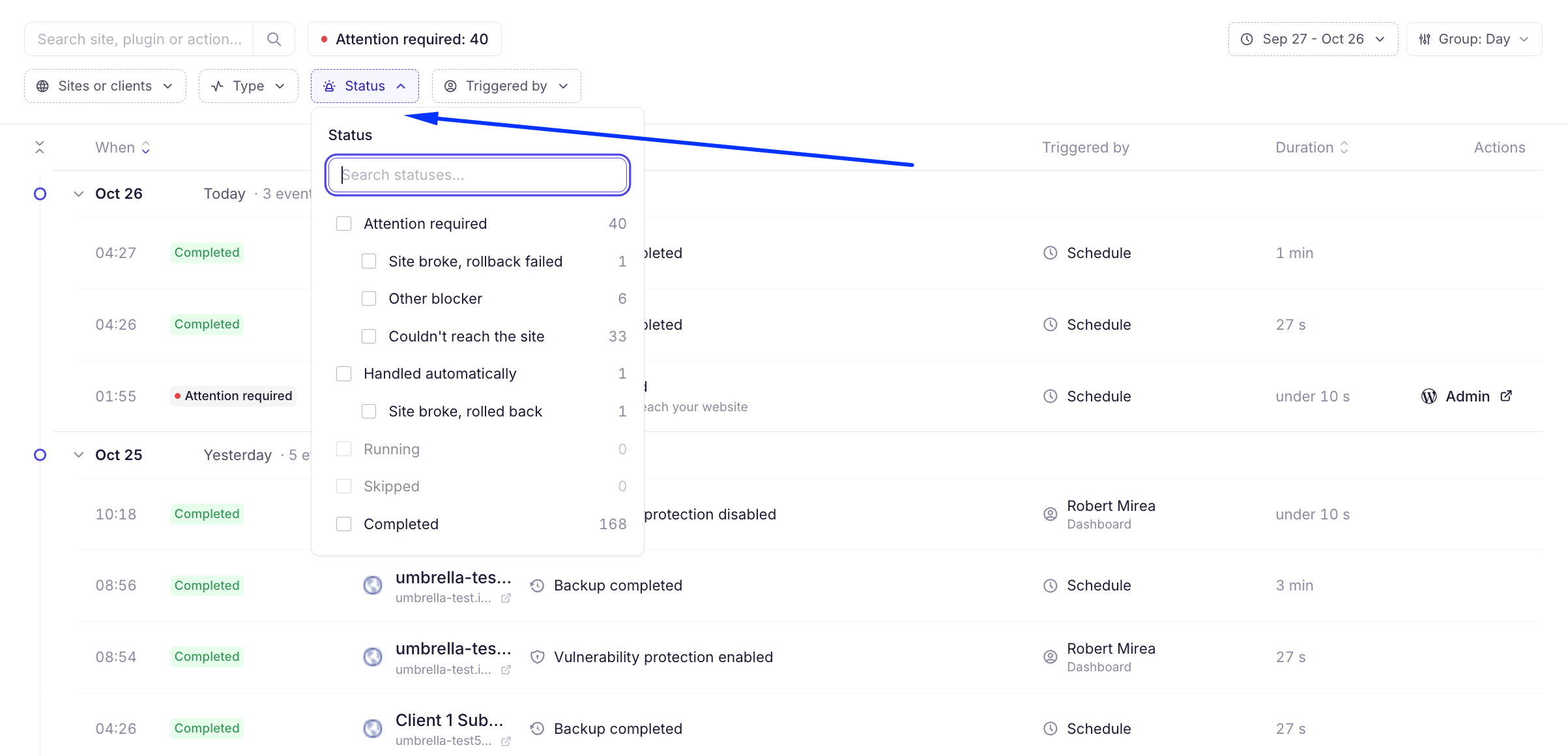
You can also click the quick Attention required button at the top to instantly isolate issues across all logs.
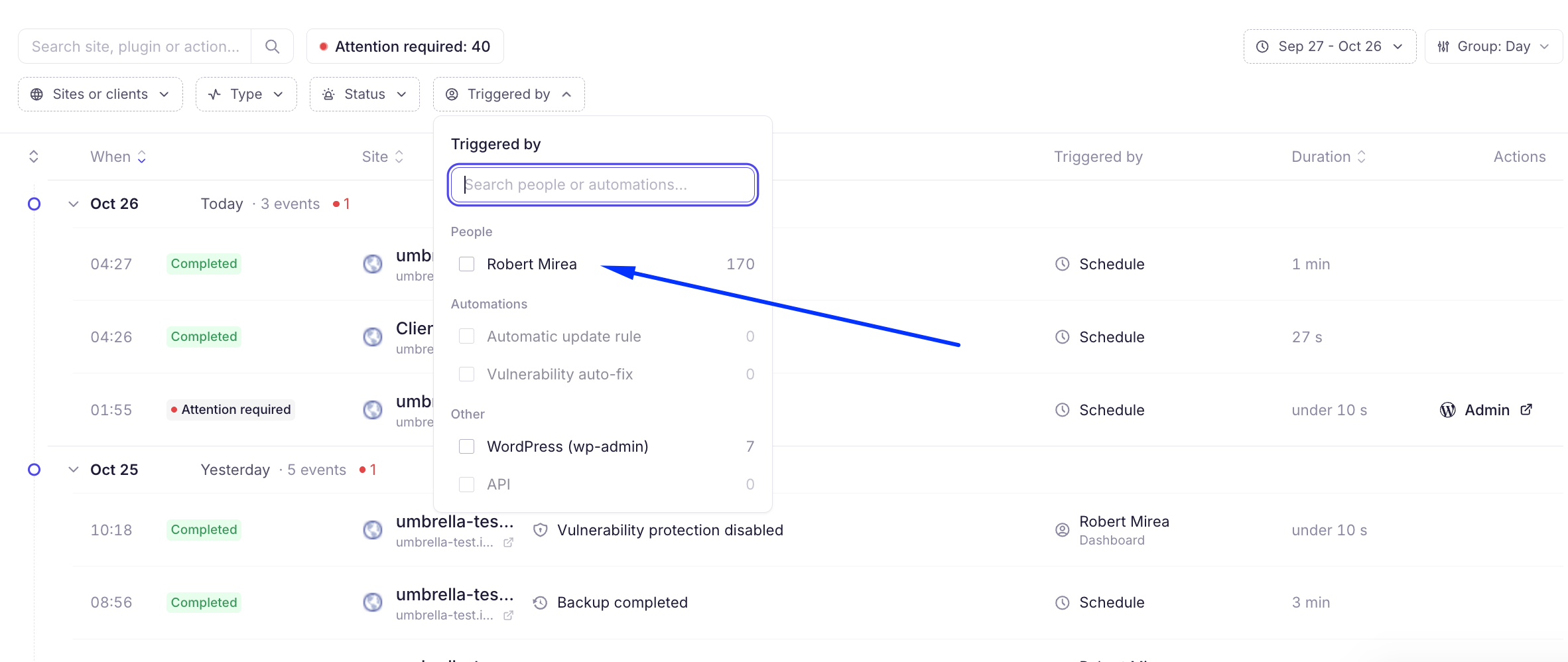
Open the Triggered by menu to see who or what initiated an action. This shows whether an event was triggered by specific people on your team, automations, or other sources like the WordPress admin area.
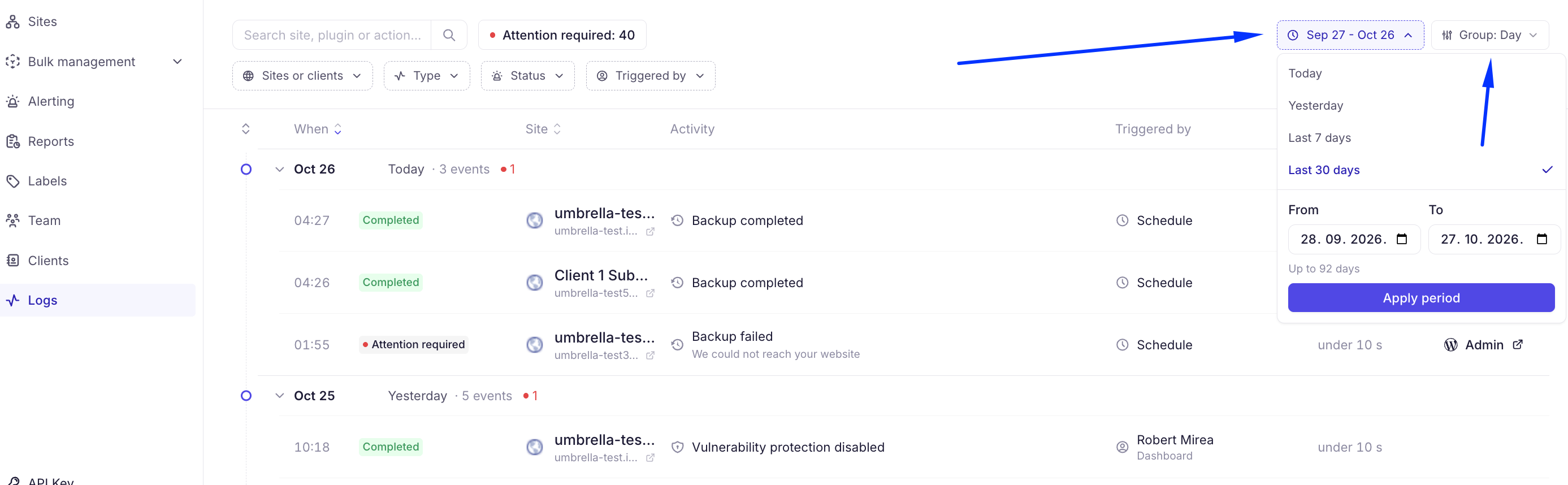
In the top right corner, use the date picker to select a custom timeframe. You can review logs from today, yesterday, the last 7 or 30 days, or apply a custom period of up to 92 days. You can also change the grouping to organize your logs by Day or site.
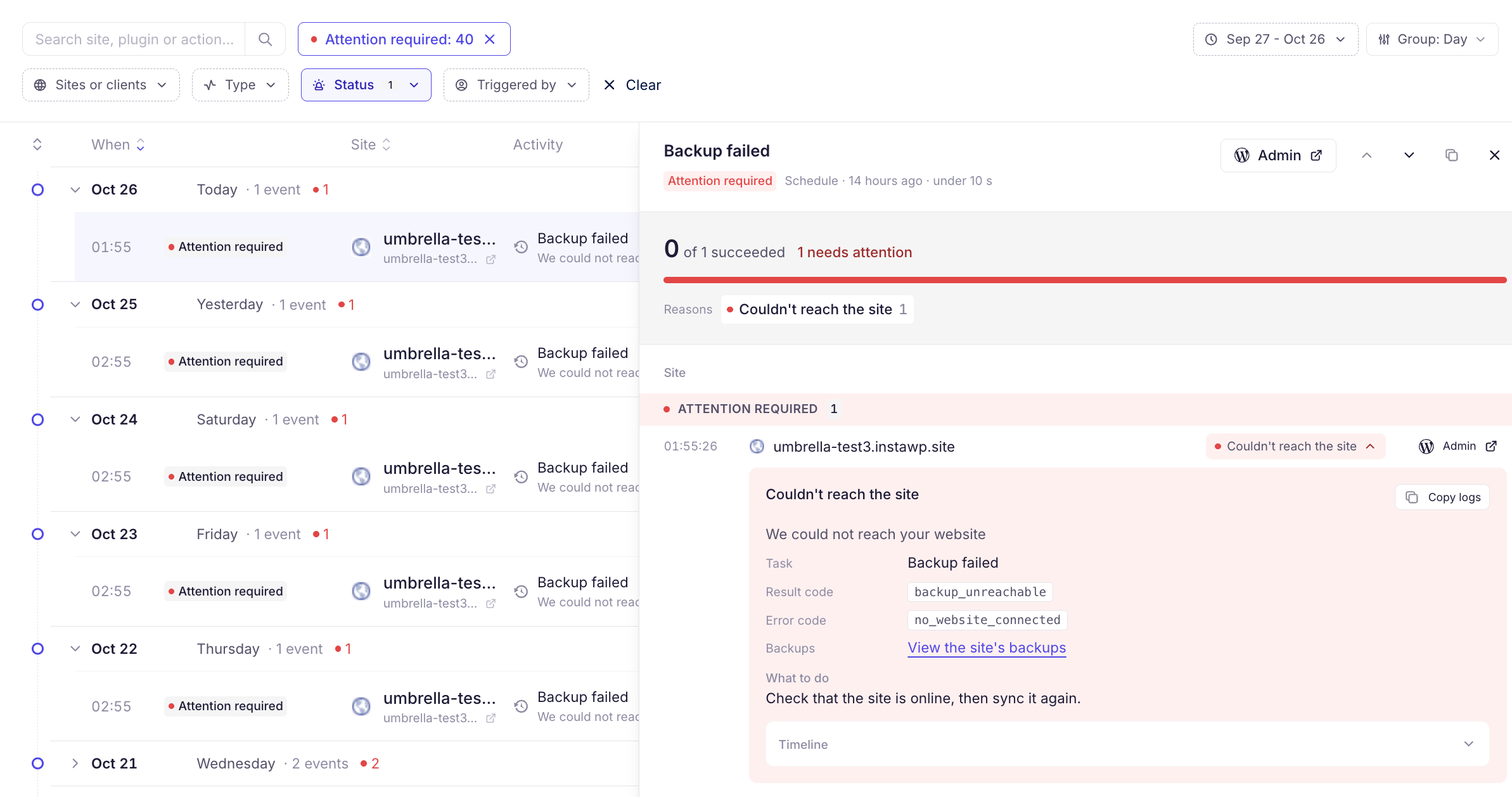
When an event requires attention, click on the log entry to open a detailed sidebar. This panel displays the exact error code, such as no_website_connected, backups issue, the timeline of the event, and suggested troubleshooting steps like checking if the site is online. You can also click the Copy logs button to easily share the technical details with our team.
That is all you need to know to get the most out of the Logs page. Easily keep tabs on your automated tasks, team actions, and website health by mastering these filters. 🎉 If you run into any issues or need assistance, feel free to reach out to our support team—we're happy to help!
