The WP Umbrella MCP connector lets Claude and other AI assistants read and manage every WordPress site in your WP Umbrella account, in plain language. You ask a question or give an instruction, and the assistant answers with your live WP Umbrella data or runs the action for you.
It is built for agencies, freelancers and hosting companies that maintain many WordPress sites. Use it day to day by chatting with an assistant, or as a foundation for your own automated workflows and AI agents on top of WP Umbrella's infrastructure. One connection covers your whole fleet, whatever the host, so you do not need to connect each site separately.
The connector is a hosted MCP (Model Context Protocol) server. There is nothing to install on your WordPress sites or your computer.
A WP Umbrella account with at least one WordPress site connected.
An AI assistant that supports remote MCP servers: Claude (web, desktop or mobile), Claude Code, ChatGPT (developer mode), Cursor, or another MCP-compatible client.
Some features need a WP Umbrella add-on or a recent plugin version on the site:
Activity log, Patchstack firewall and malware scanning: the Security add-on.
Hardening options: WP Umbrella plugin 2.25.1 or later.
Clearing login blocks: WP Umbrella plugin 2.27.2 or later.
Manual backups: backups must already be configured on the site.
You add the connector once from Claude on the web or desktop. It is then available in Claude on all your devices, including mobile.
In Claude, open Settings → Connectors.
Click Browse connectors and search for WP Umbrella.
Click Connect. A WP Umbrella sign-in window opens.
Log in with your WP Umbrella account. If you use two-factor authentication, confirm it as usual.
Choose which sites Claude can access, then click Authorize.
Back in Claude, WP Umbrella now shows as connected.
Sign-in uses OAuth, the authentication method Claude recommends for connectors. You never copy or paste an API key, and WP Umbrella never shares your password with Claude.
To check that it works, start a new conversation and ask: "List my WP Umbrella sites."
If WP Umbrella is not yet listed in the directory, add it as a custom connector: in Settings → Connectors, click Add custom connector, name it WP Umbrella, paste the server URL https://mcp.wp-umbrella.com/, then follow steps 3 to 6.
The server URL is the same everywhere: https://mcp.wp-umbrella.com/ (HTTP transport). Each client opens the same WP Umbrella sign-in the first time you use it.
The quickest way: paste the URL
You don't need an API key or any configuration file. The server URL and your WP Umbrella login are enough:
In AI agents that can run commands (Claude Code, Cursor, Codex and similar), just ask: "Add the MCP server https://mcp.wp-umbrella.com/ and connect to it." The agent adds the server itself, then opens the WP Umbrella sign-in.
In chat apps (Claude, ChatGPT), paste the URL in the app's custom connector field, as described below, then sign in. For security, chat apps don't let a message in a conversation add a connector, so this one step happens in settings.
Claude Code
Run:
claude mcp add --transport http wp-umbrella https://mcp.wp-umbrella.com/Start Claude Code, type /mcp, select wp-umbrella and choose Authenticate.
Sign in to WP Umbrella in the browser window that opens and authorize access.
Cursor and other clients
Add the server to your client's MCP configuration. In Cursor, for example, edit mcp.json:
{
  "mcpServers": {
    "wp-umbrella": {
      "url": "https://mcp.wp-umbrella.com/"
    }
  }
}
Then start the connection from the client's MCP settings and sign in when prompted.
ChatGPT
ChatGPT connects to custom MCP servers through developer mode, on the web only.
Turn on developer mode in your ChatGPT settings, or in workspace settings on a Business, Enterprise or Edu plan.
Go to Settings → Apps → Create (or Workspace settings → Apps → Create).
Enter the server URL https://mcp.wp-umbrella.com/, name it WP Umbrella, and choose OAuth as the authentication method.
Click Scan Tools, then Create, and sign in to WP Umbrella when prompted.
Full access, including updates and other changes, is available on ChatGPT Business, Enterprise and Edu. On ChatGPT Pro, developer mode allows read-only tools only. ChatGPT asks for confirmation before actions based on the app's permissions. After a WP Umbrella update adds new tools, a workspace admin must refresh the tools in ChatGPT. Details from OpenAI's help center.
Once connected, start with these requests. They only read data, so nothing changes on your sites. Replace example.com with one of your sites.
"Which of my WordPress sites need attention today?" A fleet check covering pending updates, vulnerabilities and backup status.
"Which plugins are outdated on example.com, and do any of the updates fix a security vulnerability?" Tells you which updates to run first.
"Give me a security overview of all my sites, least secure first." Security scores, firewall coverage and open vulnerabilities, ranked.
"Was example.com down in the last 30 days? Are there any PHP fatal errors?" Uptime incidents and PHP errors in one answer.
"When was example.com last backed up, and how often is it backed up?" Backup history and schedule.
When you're ready to act, ask for it in the same conversation, for example "Back up example.com, then update those plugins." The assistant tells you what will change and waits for your confirmation.
You do not need to know tool names. Describe what you want and mention the site by name or domain; the assistant picks the right action.
Area
What the assistant can do
Try asking
Sites | List and search your sites, with pending updates, vulnerabilities and backup status | "Which of my sites need attention today?" |
Updates | List plugins and themes, update plugins, themes and WordPress core, find updates WP Umbrella cannot install, set or remove plugin update automations | "Update all plugins on example.com." |
Backups | List backups, start an incremental backup, change backup settings, get a temporary download link | "Back up example.com and tell me when it's done." |
Security | Security overview and checks, vulnerabilities by severity, malware detections, firewall and hardening options, security add-ons, hidden admin cleanup | "Are any of my sites affected by a critical vulnerability?" |
Monitoring | Uptime, performance scores, PHP errors, broken links, activity log | "Which sites went down this month, and for how long?" |
Clients and reports | Customers and labels, custom maintenance work, white-label maintenance reports | "Generate the September report for Acme Corp." |
Database | Optimize a site's database | "Optimize the database of example.com." |
History | Past tasks and processes, status of a running update or backup | "What was updated on example.com last week?" |
Safe plugin updates on a client site
"Which plugins need an update on example.com, and do any fix a vulnerability?"
"Take an incremental backup of example.com first." The assistant starts the backup and follows it until it finishes.
"Now update those plugins." The assistant lists what will change, waits for your confirmation, then reports the result for each plugin.
"Check uptime and PHP errors on example.com since the update."
Plugin updates run in Safe update mode by default: if an update fails, the plugin is rolled back. You can also ask for a Quick update or an Advanced safe update, which adds a post-update validation. The connector does not take a backup automatically before an update, so ask for it explicitly, as in step 2.
Weekly security review of your fleet
"Give me a security overview of all my sites, least secure first."
"List critical and high vulnerabilities, with the version that fixes each one."
"Show open malware detections."
Monthly client report
"Log a custom work for Acme Corp: homepage redesign, 3 hours, on September 12."
"Generate the maintenance report for acme.com for September." The assistant confirms the period and the recipients before sending, because the report is emailed.
The 71 tools are building blocks. Agencies and hosting companies can chain them into their own maintenance workflows and AI agents, while WP Umbrella handles the connection to each site, updates with rollback, backups, security scanning and monitoring.
Ways to build on it:
Reusable prompts and skills. Write your maintenance procedure once (for example: back up, update with Safe update, check uptime and PHP errors, log the work) and run it on any site from Claude, ChatGPT or Claude Code.
Scheduled agents. Run a recurring task, such as a Monday morning security review of the fleet or a monthly report run, in any AI client or agent platform that supports scheduled tasks with MCP.
Your own applications. Connect the server from code with an agent framework or an AI provider's API that supports remote MCP servers, such as the Claude API or the OpenAI API, and build internal tools, customer portals or support bots on top of it.
Hosting and managed WordPress offers. Give your support or operations team an assistant that can check a customer site's uptime, vulnerabilities, PHP errors and backups in one question.
Examples of custom workflows:
Workflow
Tools it chains
Weekly patch run with a safety net |
|
Vulnerability response across the fleet |
|
Automatic security updates policy |
|
Monthly client reporting |
|
Incident triage for support teams |
|
Every action still runs with the access granted through OAuth and within WP Umbrella's quotas and safeguards.
The AI client never gets more access than you do. Each request passes through your OAuth identity, your WP Umbrella permissions and the sites you authorized before any tool runs.
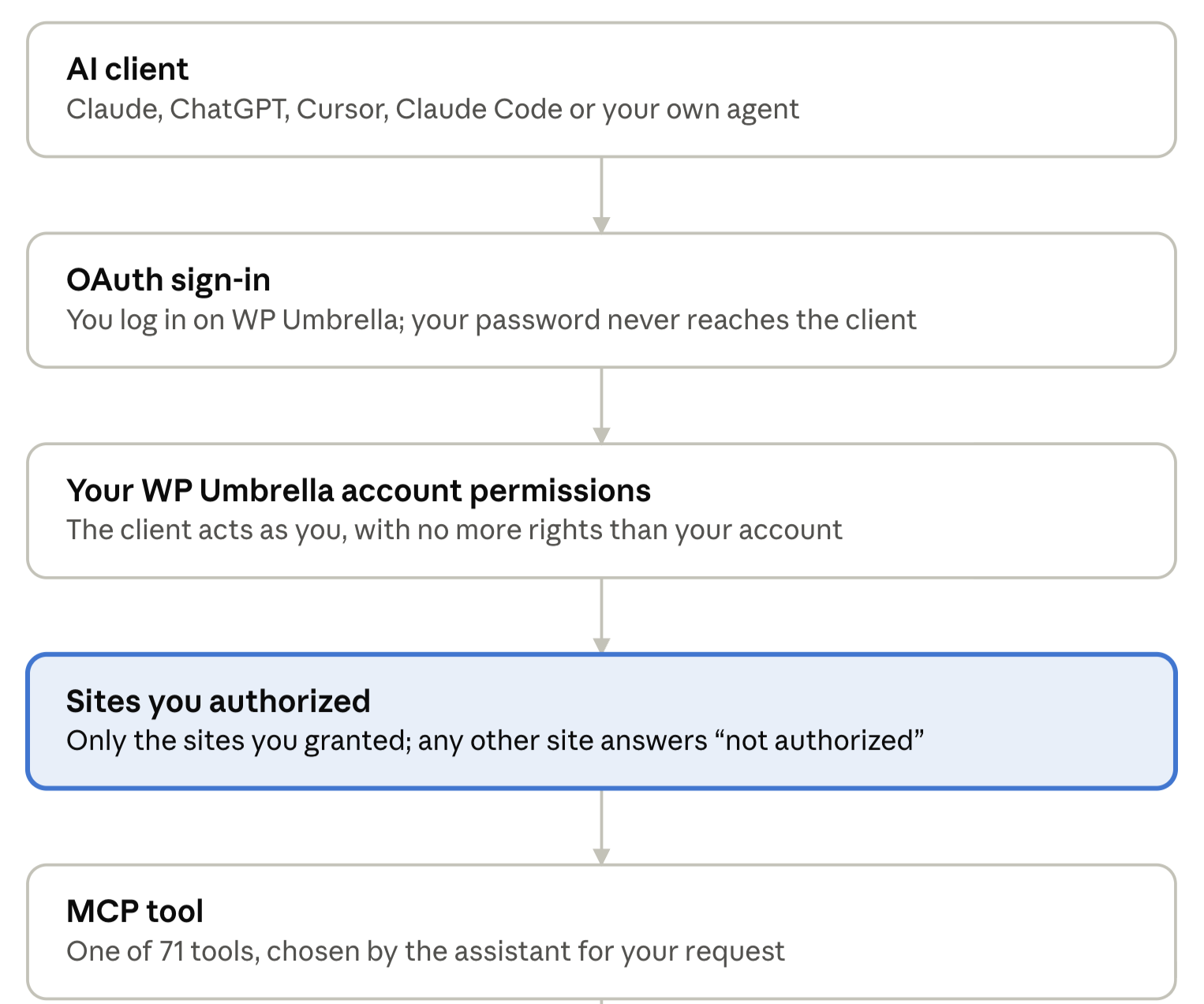
Tools that only read run straight away. Tools that change your account or a site wait for your confirmation first.
Reading data never changes your sites. Before any change, the assistant states exactly what will change and on which sites, then waits for your explicit confirmation.
This applies to updates, backups and backup settings, database optimization, security and firewall settings, malware and alert actions, plugin automations, reports, and creating, editing or deleting clients, labels or custom works.
Pay attention to these actions before confirming:
Database optimization cannot be undone.
WordPress core updates run on the live site.
Security add-ons may start billing. The assistant checks their current status first and tells you the billing impact.
Hourly backups are billed per site.
Reports are emailed to the recipients as soon as they are generated.
Dismissing a security alert only hides it. It does not fix the issue.
You can also restrict which tools run without asking in your AI client's own connector settings.
Requests are rate limited. On large fleets, the assistant may take longer and group its calls, so prefer targeted questions ("sites with critical vulnerabilities") over "show me everything".
Some actions have quotas shared with the dashboard: manual backups per site over a rolling window, manual vulnerability scans per site per day, and reports per site per day. Only one backup and one backup archive can run at a time per site. Activity log events are kept for 30 days.
The assistant says a site is "not authorized". That site is outside the access you granted when signing in. Disconnect and reconnect the connector, and select the site during authorization.
The assistant answers from general knowledge instead of my data. Check that the WP Umbrella connector is turned on for the conversation (in Claude, from the tools menu in the message box), then ask again and mention WP Umbrella.
The sign-in window does not open or loops. Allow pop-ups for claude.ai, log out of WP Umbrella in the same browser, then click Connect again.
Activity log, firewall or hardening data is missing. These need the matching WP Umbrella add-on or security module to be active on the site.
An update shows as unavailable. Some premium plugins or themes cannot be updated remotely, usually because of a missing or expired license. Ask "Which updates can't WP Umbrella install?" to see the list.
Does the AI provider get access to my WP Umbrella account? No. Your password and login stay with WP Umbrella. The AI client only sees the data the assistant reads to answer your request, such as site names or plugin lists, and processes it under its own privacy policy.
Can my team use it? Yes. Each team member connects with their own WP Umbrella login and sees only the sites their account can access.
Still stuck? Contact WP Umbrella support.
In Claude: open Settings → Connectors, select WP Umbrella and click Disconnect.
In Claude Code: run claude mcp remove wp-umbrella.
Other clients: remove the wp-umbrella entry from the MCP configuration.
Disconnecting stops the assistant from reaching your account. To change which sites it can access, disconnect and connect again, then select the sites you want during authorization.
